


Last week I wrote about using Claude Code to generate Draw.io architecture diagrams directly from Terraform. The idea was simple: instead of maintaining diagrams by hand which nobody does consistently — let the AI generate them from the source of truth.
The response I got most often was: “That’s great, but you’re still comparing them manually, right? Isn’t that the hard part?”
They’re not wrong. So I kept going.
But before I get into the technical details, I want to be clear about what this is actually for — because it’s easy to frame this as a documentation automation story, and that undersells it.
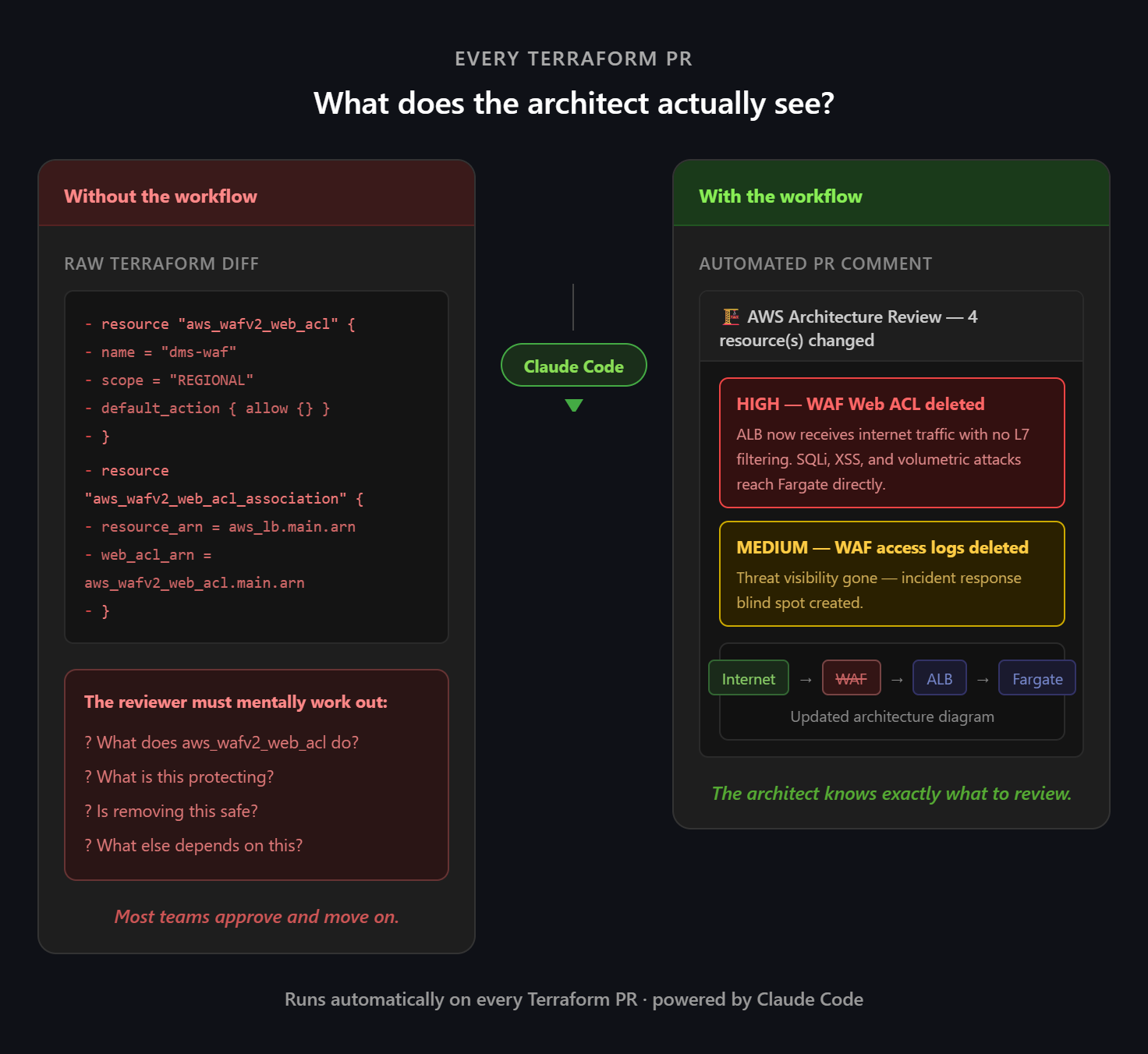
The real problem: architects can’t review what they can’t see
When a Terraform PR lands for review, the people best placed to assess its architectural implications — the principal engineers, the solutions architects, the team leads — are looking at raw HCL. They’re expected to mentally reconstruct what the infrastructure looks like, what’s changing, and whether those changes introduce risk. For anything beyond a trivial PR, that’s an unreasonable ask.
So what actually happens? The code gets reviewed for syntax and convention. Someone checks the variable names and the resource tags. The architectural implications — the ones that matter — get a cursory glance at best. Problems that should be caught at PR time surface weeks later, in production.
This isn’t a people problem. It’s a tooling problem. Architects can’t review what they can’t see.
What this workflow does
This is a GitHub Actions workflow that automatically updates your AWS architecture diagram and posts a structured risk analysis to every Terraform PR — giving architects the visual context and the flagged risks they need to do a proper review.
Every time a PR touches your Terraform files, the reviewer gets:
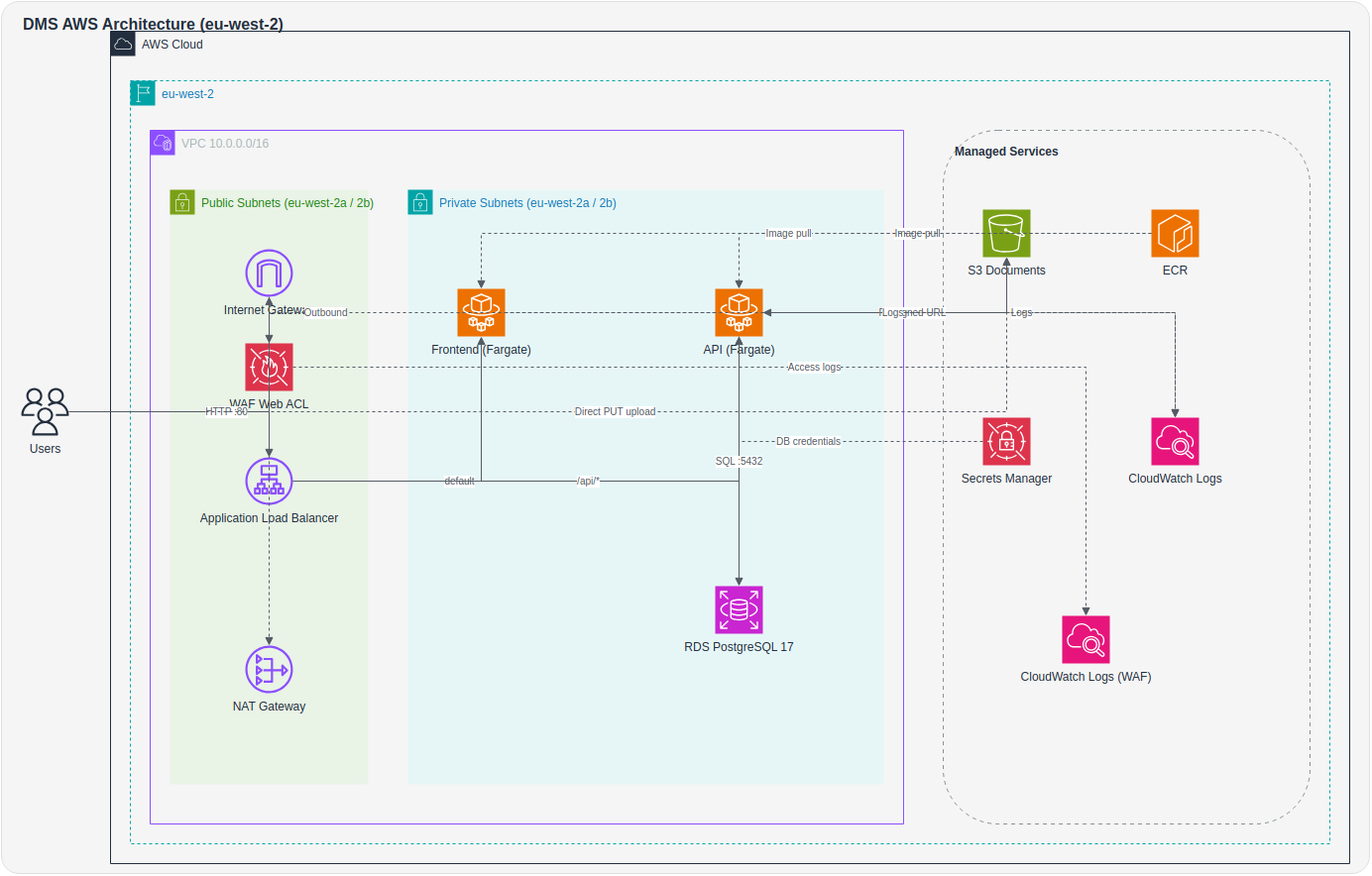
A visual diagram of the updated architecture — what the infrastructure looks like after this PR merges, committed directly to the branch as a Draw.io file and an inline PNG
A risk analysis with HIGH / MEDIUM / LOW severity flags on the architectural implications of each change
A resource table showing what changed, the service’s role, and the impact — split by change type (modified, force-replaced, permanently deleted)
The architect’s job isn’t replaced — it’s made possible. This is a task that needs both data processing and contextual understanding, and that’s precisely where AI and human capability complement each other. The workflow handles the data — diffing infrastructure, classifying changes, flagging risks. The architect brings what AI can’t: experience, intuition, and the judgement to understand nuance. One without the other is weaker. Together, they’re more capable than either alone.
What the PR comment looks like
Two real examples from the same system — a Document Management Service running on ECS Fargate with RDS and S3. One PR strengthens the security posture, one weakens it. The difference in what the architect sees is stark.
Example 1: WAF added — security posture strengthened
A PR adds a WAF Web ACL, attaches it to the ALB, and wires up access logging to CloudWatch. Four resources added, zero removed, no risks flagged.
🏗️ AWS Architecture Review
4 resource(s) changed — 4 added/modified, 0 removed
Resources added
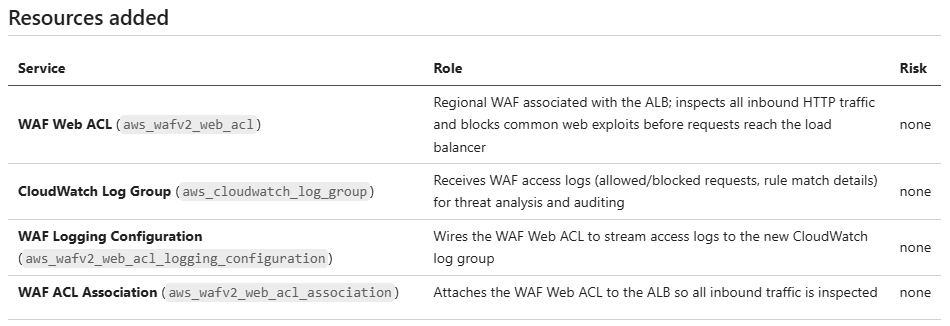
The architect can see at a glance that this is a clean security improvement. Every added resource has a clear role, nothing is being removed, and there are no risks to assess. The review is quick and confident.
The companion guide tells the full story — the updated network topology, the new request flow through WAF before the ALB, the CloudWatch log group for threat analysis, and the security implications of each addition. An architect joining the team after this PR can understand the full security model without having to read the Terraform.
If you want to see exactly what change produced this output, the Terraform is in the examples repo — the withwaf folder shows the full infrastructure definition including all four WAF resources. It’s a useful reference for understanding the relationship between the HCL and what the workflow surfaces to the architect.
Example 2: WAF removed — security posture weakened
Now the same WAF resources are deleted in a PR. This time the workflow fires HIGH and MEDIUM severity flags, and the architect has decisions to make before this merges.
🏗️ AWS Architecture Review
4 resource(s) changed — 1 added/modified, 3 removed
⚠️ Architecture Risks
HIGH — WAF Web ACL deleted (
dms-production-waf): All inbound HTTP traffic now reaches the ALB unfiltered. OWASP managed rules (SQLi, XSS, known bad IPs) that were blocking threats at the edge are gone. Any application-layer exploit protection previously handled by WAF must now be handled entirely at the application level.MEDIUM — WAF access logs deleted (
aws-waf-logs-dms-production): Loss of allow/block decision logs and source IP visibility that was used for threat analysis. Incident response for web-layer attacks will have a significant blind spot.
Resources modified (in-place)

Resources permanently deleted

This is exactly the scenario where the workflow earns its place. Without it, a reviewer looking at the raw Terraform diff sees four resource deletions and has to mentally reconstruct what each one does and what disappears with it. With the workflow, the architect sees two flagged risks in plain English — the ALB is now unfiltered, and threat visibility is gone — before a single approval is clicked.
The companion guide shows the updated architecture without the WAF layer, making the exposure immediately visible. The architect can now make an informed decision: is this intentional? Is there a compensating control? Should this block the merge?
That’s the conversation this workflow is designed to start.
The Terraform for this example is also in the examples repo — the withoutwaf folder shows the same infrastructure with the WAF resources removed. Compare it with the withwaf folder to see precisely what four resource deletions look like in raw HCL versus what they look like to an architect reviewing a PR comment.
How it works
When a PR is opened against any file under infra/terraform/aws/:
A Python script diffs the branch against main and produces a diff.json of added, modified, and deleted AWS resources
Claude Code runs the aws-architecture-sync skill, which orchestrates the aws-architecture-diagram skill to update the diagram and regenerate the companion guide
The updated files are committed back to the PR branch
A PR comment is posted with the risk analysis, resource tables, diagram PNG, and links
Two Claude Code skills power this under the hood. The aws-architecture-sync skill analyses the Terraform diff, determines which nodes and edges need adding or removing, and produces the risk summary that lands in the PR comment. The aws-architecture-diagram skill owns all the Draw.io XML generation — looking up accurate AWS service icons, applying layout rules, writing the .drawio file, and generating the companion guide. Both skills live as Markdown files in .claude/skills/ inside the cloudaifusion/sdlc-automation repo, which is public and forkable. The Python diff script and a full example workflow are also in the repo.
Setting it up
Prerequisites
A GitHub repository with Terraform files
One of the following for Claude AI access:
Anthropic API key — individuals or small teams getting started; pay-as-you-go with no subscription required
Claude.ai OAuth token — teams already on a Claude.ai Pro or Team subscription who want to get more value from it beyond the chat interface
AWS Bedrock — organisations that need data to stay within a specific AWS region (data residency requirements), want Claude usage billed through their existing AWS account rather than a separate Anthropic account, or need to integrate with IAM, VPCs, or AWS-native security controls. More setup overhead, but the right choice for enterprise environments where the primary focus is enterprise-grade security, compliance, and integration within an existing AWS ecosystem.
Step 1 — Create a docs folder
Create an empty docs/ folder in your repo so the workflow has somewhere to write the diagram:
mkdir docs
touch docs/.gitkeep
git add docs/.gitkeep
git commit -m "Add docs folder for architecture diagrams"
Step 2 — Fork the repo and create the workflow file
First, fork cloudaifusion/sdlc-automation to your own GitHub org. This gives you full control — you own the skills, the workflow, and the scripts, and can customise them to match your own conventions without depending on this repo being maintained.
Then create .github/workflows/aws-architecture-sync.yml in your infrastructure repo, pointing the uses line at your fork:
name: AWS Architecture Sync

on:
  pull_request:
    paths:
      - 'infra/terraform/aws/**'   # adjust to match your Terraform path
  workflow_dispatch:

jobs:
  architecture-review:
    uses: your-org/sdlc-automation/.github/workflows/aws-architecture-sync.yml@main
    permissions:
      contents: write
      pull-requests: write
      id-token: write
    with:
      terraform_path: infra/terraform/aws   # adjust to your Terraform path
      docs_path: docs
      diagram_name: architecture
      pr_number: ${{ github.event.pull_request.number }}
    secrets:
      ANTHROPIC_API_KEY: ${{ secrets.ANTHROPIC_API_KEY }}
      CLAUDE_CODE_OAUTH_TOKEN: ${{ secrets.CLAUDE_CODE_OAUTH_TOKEN }}
Replace your-org with your GitHub org or username. Adjust terraform_path to wherever your .tf files live. The workflow accepts these inputs if your repo structure differs from the defaults:
terraform_path (default: infra/terraform/aws): Path to your
.tf filesdocs_path (default: docs): Where to write the diagram and guide
diagram_name (default: architecture): Base filename for the outputs
Step 3 — Add your secret
Go to your GitHub repo → Settings → Secrets and variables → Actions → New repository secret
Add one of:
ANTHROPIC_API_KEY: Your key from console.anthropic.com
CLAUDE_CODE_OAUTH_TOKEN: Your Claude.ai OAuth token
The workflow will use whichever is available. The OAuth token takes priority.
Step 4 — Trigger it
Make any change to a file under your terraform_path and open a PR. The workflow will:
Diff the Terraform changes against main
Generate or update docs/architecture.drawio, docs/architecture.md, and docs/architecture.png
Commit those files back to your PR branch
Post a comment on the PR with the diagram and a summary of what changed
The first time it runs with no existing diagram, it generates one from scratch from all your current Terraform files. On every subsequent PR it updates incrementally based on the diff.
Step 5 — View the diagram locally
Install the Draw.io Integration extension in VS Code, pull the branch, and open docs/architecture.drawio. It renders as a fully interactive diagram, useful for deeper review sessions where the architect wants to explore the full picture rather than just the diff.
A note on prompt injection
The workflow passes your Terraform files and existing diagram XML directly into the Claude prompt. Any text in those files is treated as data, not instructions — the prompt wraps each input in explicit BEGIN DATA / END DATA delimiters and opens with a system directive telling Claude to ignore any commands embedded in data sections. If you’re running this against a repo with external contributors, this is the relevant threat model to be aware of.
A note on CI errors you can safely ignore
You may see these messages in the workflow logs:
Failed to connect to the bus: Could not parse server address...
Exiting GPU process due to errors during initialization
These come from Draw.io (an Electron app) running headlessly in CI without a desktop session. They don’t affect the output — as long as you see PNG export succeeded at the end, everything worked.
Optional: AWS Bedrock instead of direct API
If you want the full step-by-step guide to configuring Bedrock access from GitHub Actions, I've covered that in detail in Calling AWS Bedrock from GitHub Actions Without Storing Credentials. The summary below covers the key variables you'll need once that's set up.
If you want to use AWS Bedrock to call Claude — for data residency or cost billing reasons — add these GitHub repository variables:
AWS_ROLE_ARN: e.g. arn:aws:iam::123456789:role/github-actions-role
AWS_REGION: e.g. eu-west-2
BEDROCK_MODEL_ID: e.g. eu.anthropic.claude-sonnet-4-6
USE_BEDROCK: true
Configuring GitHub OIDC trust for AWS Bedrock
GitHub Actions can assume an AWS IAM role without storing long-lived credentials, using OpenID Connect (OIDC). Here’s how to set it up.
1 — Add GitHub as an OIDC identity provider in AWS
Open the AWS IAM console → Identity providers → Add provider
Select OpenID Connect and set:
Provider URL: https://token.actions.githubusercontent.com
Audience: sts.amazonaws.com
Click Add provider — AWS now handles the thumbprint automatically
2 — Create the IAM role
Go to IAM → Roles → Create role
Select Web identity as the trusted entity type
Set the following fields:
Identity provider: token.actions.githubusercontent.com
Audience: sts.amazonaws.com
GitHub organization: Your GitHub org or username
GitHub repository: The repo where your Terraform lives and your workflow runs, or * for all repos in the org
GitHub branch: Leave as * to allow any branch, or specify a branch to restrict further
Important: the GitHub repository field should be the repo that contains your Terraform files and your workflow file — not the sdlc-automation repo you forked. The trust policy needs to match the repo that is actually making the AWS API calls. If you're using a reusable workflow defined in another repo, the trust policy still needs to reference your infrastructure repo, not the one where the reusable workflow lives.
AWS will generate the trust policy condition automatically from these fields.
Click Next — AWS will take you to the Add permissions screen
On the Add permissions screen, click Next again without selecting anything — you’ll add the Bedrock policy as an inline policy after the role is created
On the Name, review, and create screen, verify the auto-generated trust policy contains sts:AssumeRoleWithWebIdentity and the correct repo condition
Give the role a name (e.g. github-actions-bedrock) and click Create role
3 — Add the Bedrock permission policy
Once the role is created, open it and go to the Permissions tab → Add permissions → Create inline policy, switch to the JSON editor and paste the following:
json
{
  "Version": "2012-10-17",
  "Statement": [
    {
      "Sid": "AllowBedrockInvoke",
      "Effect": "Allow",
      "Action": [
        "bedrock:InvokeModel",
        "bedrock:InvokeModelWithResponseStream"
      ],
      "Resource": [
        "arn:aws:bedrock:*::foundation-model/anthropic.claude-*",
        "arn:aws:bedrock:*:*:inference-profile/*"
      ]
    }
  ]
}
The inference-profile resource is needed if you use cross-region inference profiles (e.g. eu.anthropic.claude-sonnet-4-6). If you want to allow invocation of any Bedrock model rather than restricting to Claude, you can simplify the resource to “Resource”: “*”.
Click Next, give the policy a name (e.g. github-actions-bedrock-policy), and click Create policy.
4 — Verify the trust policy
On the role’s Trust relationships tab, confirm it contains sts:AssumeRoleWithWebIdentity with a condition scoped to your repo. If it doesn’t look right, edit it directly in the console before proceeding.
5 — Copy the role ARN and add it to GitHub
On the role summary page, copy the ARN (e.g. arn:aws:iam::123456789012:role/github-actions-bedrock)
Go to your GitHub repo → Settings → Secrets and variables → Actions → Variables tab → New repository variable
Add the following repository variables:
AWS_ROLE_ARN: The ARN you just copied
AWS_REGION: e.g. eu-west-2
BEDROCK_MODEL_ID: e.g. eu.anthropic.claude-sonnet-4-6
USE_BEDROCK: true
These are repository variables (referenced in workflows as vars.AWS_ROLE_ARN), not environment variables. GitHub Actions environment variables are scoped to specific deployment environments like production or staging — repository variables are available to all workflows in the repo.
6 — Complete the Anthropic first-time use form
AWS has retired the Model Access page — serverless foundation models are now automatically available without manual enablement. However, Anthropic models still require a one-time use case form before first invocation:
Open the Amazon Bedrock console → Model catalog
Select any Anthropic Claude model
Complete the first-time use form and submit — access is granted immediately
This only needs to be done once per AWS account. If you are using AWS Organizations, completing it at the management account level covers all child accounts.
Once this is done, the workflow will authenticate to AWS via OIDC on each run, assume the role, and call Bedrock — no stored credentials required.
Cost
Each PR run makes one Claude API call using claude-sonnet-4-6. The cost per run is low — a few cents at most for a typical Terraform diff — and a fraction of what an architectural issue caught in production rather than at review would cost. Your actual cost will vary depending on diagram size and the number of resources changed.
Customising for your own conventions
The skills are just Markdown files — fork cloudaifusion/sdlc-automation, edit the aws-architecture-sync/SKILL.md or aws-architecture-diagram/SKILL.md files in .claude/skills/ to match your conventions, then point your workflow at your fork:
yaml
uses: your-org/sdlc-automation/.github/workflows/aws-architecture-sync.yml@mainThe broader point
Good architectural governance doesn’t fail because architects don’t care. It fails because the feedback loop is too slow and the context too hard to assemble. By the time an architectural concern surfaces through the usual channels, the code has shipped, the infrastructure is running, and the cost of change is an order of magnitude higher.
Putting a visual architecture review directly in the PR — at the moment the change is being made, with risks already flagged and explained — closes that loop. It gives architects the right information at the right time, and it makes proper architectural review a natural part of the PR process rather than an afterthought.
The full source is at github.com/cloudaifusion/sdlc-automation.